

Available Quick Actions
Redline Document
Redline Document
The Redline Document Quick Action generates precise redlines throughout the contract or document based on the negotiation context you provide.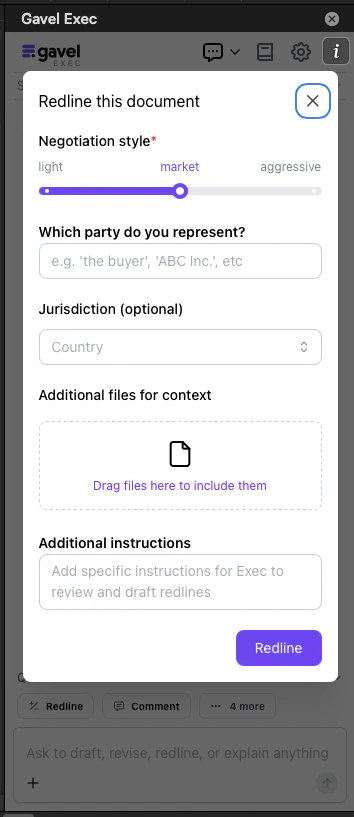
- Negotiation Style — Set how aggressive you want the redlining to be, from light-touch revisions to strong advocacy positions.
- Representation — Specify which party you represent so the AI redlines from the correct side of the negotiation.
- Jurisdiction: — Select Country, State/Province to hone into the jurisdictional specifications and language style for that area.
- Additional Files — Upload reference documents such as previous contracts or deal context materials to inform the AI’s redlining style and substance.
- Additional Instructions — Add any specific focus areas or deal-specific requirements for the AI to prioritize.
Add Comments
Add Comments
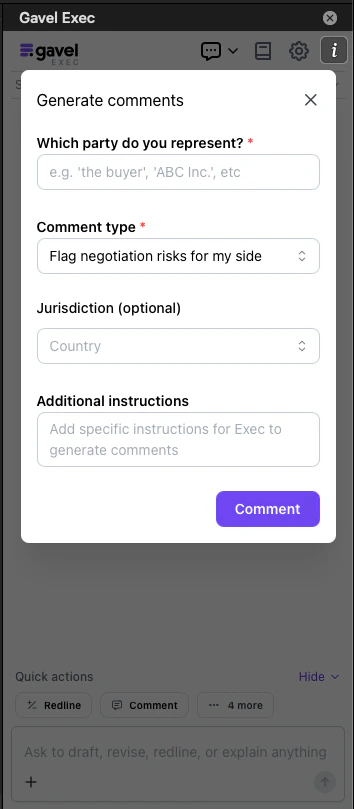
The Add Comments Quick Action reviews the document and generates comments for you to review, add, or dismiss throughout the contract.
- Representation — Specify which party you represent so the AI comments from the correct perspective.
- Comment Type — Select the type of comments you want:
- Flag negotiation risks for my side — Identifies clauses that are unfavorable to your client.
- Suggest redlines as comments — Proposes specific language changes as inline comments.
- Explain key points/risks to my client — Generates plain-language explanations suitable for sharing with the client.
- Jurisdiction: — Select Country, State/Province to hone into the jurisdictional specifications and language style for that area.
- Additional Instructions — Add specific guidance for the AI to focus on particular issues or clause types.
Generate Draft
Generate Draft
The Generate Draft Quick Action creates drafts of specific clauses, paragraphs, sections, or entire documents based on your direction.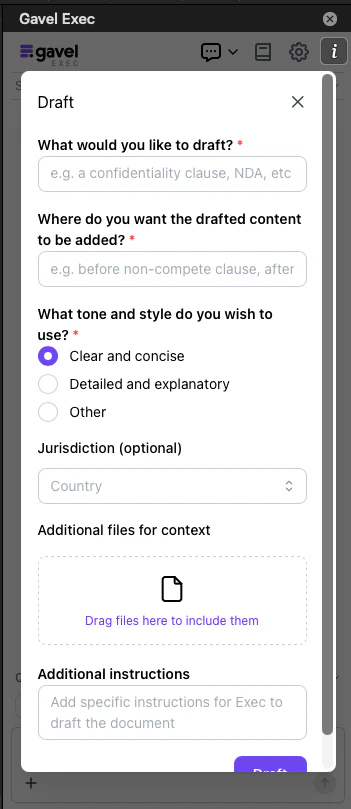
- Drafting Selection — Describe what you want the AI to draft, such as a specific clause type, a missing section, or a full agreement.
- Draft Placement — Choose where in the current document the draft should be inserted.
- Draft Tone and Style — Select the style that fits the document:
- Clear and concise — Straightforward, plain language.
- Detailed and explanatory — More expansive language with context.
- Other — Specify a custom style.
- Jurisdiction: — Select Country, State/Province to hone into the jurisdictional specifications and language style for that area.
- Additional Files — Upload reference contracts or precedent documents to match your firm’s drafting style.
- Additional Instructions — Add any additional requirements or constraints for the draft.
Use a Playbook
Use a Playbook
The Use a Playbook Quick Action takes you directly to the Playbooks tab, where you can select a playbook to run against your document.Playbooks apply a structured set of rules to review and redline the contract. You can use Gavel’s built-in playbooks or create and save your own. See the Playbooks guide for full details on building and managing playbooks.
Summarize Redlines
Summarize Redlines
The Summarize Redlines Quick Action reviews the redlines in your document and generates a comprehensive outline of what those redlines change in the contract.This is useful when you have received a redlined document from a counterparty and need a quick read on the overall impact of their proposed changes before negotiating. Open the redlined document in Word and run this Quick Action to get a structured summary in the chat panel.
Find Missing Terms
Find Missing Terms
The Find Missing Terms Quick Action searches the document for terms or provisions that are absent based on the baseline you set.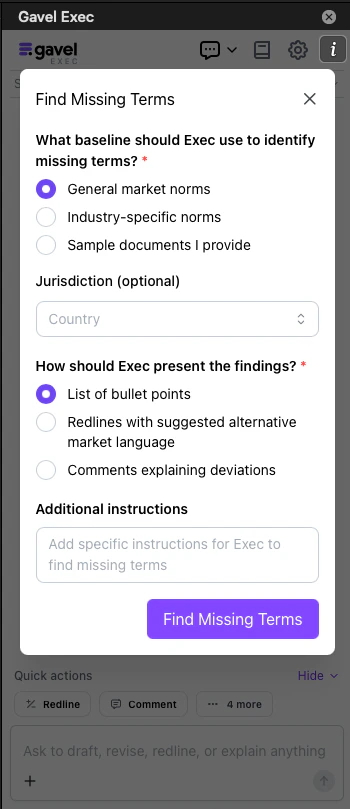
- Identification Baseline — Choose the standard the AI should compare the document against:
- General market norms — Common provisions expected in a standard commercial agreement.
- Industry-specific norms — Provisions typical in a specific industry.
- Input your industry area — Specify the industry for more targeted results.
- Sample documents I provide — Upload reference contracts to use as the baseline for comparison.
- Jurisdiction: — Select Country, State/Province to hone into the jurisdictional specifications and language style for that area.
- Output Type — Choose how you want the findings presented:
- List of bullet points — A plain list of missing terms.
- Redlines with suggested alternative language — Proposed additions inserted as tracked changes.
- Comments explaining deviations — Inline comments describing each gap.
- Additional Instructions — Add specific guidance on which terms or clause types to prioritize.