

.docx file and upload the file to your workflow. Mark the places where questionnaire answers should appear using the Document Tagger Word add-in. When a user completes the questionnaire, Gavel replaces every tag with the corresponding answer and generates a finished document — either as a Word file, a PDF, or both.
Upload your template to Gavel
You can upload it to Gavel in three ways:- Gavel Blueprint — the AI-enabled workflow builder. Click New Workflow > Start with documents, upload your
.docxfile, and Blueprint automatically reads your document, identifies variables, and generates a draft questionnaire for your review. - Document Templates tab of a workflow — open any existing workflow, go to the Document Templates tab, and upload the file directly.
- Document Templates section of the dashboard — upload templates centrally and attach them to workflows later.
Install the Gavel Word add-in
Gavel provides a no-code Word add-in called Document Tagger that lets you insert and manage all variable tags without writing syntax by hand. The add-in is available in the Microsoft Office Add-ins store.1
Install from the Office store
Open Microsoft Word and go to the Office Add-ins store. Search for Gavel or visit the store page directly. Once installed, click Document Tagger in the Word Ribbon to open the panel.
2
Generate an API key
In your Gavel account, go to Settings > API Keys. Enter a title for the key and click Create a Key. Copy the key immediately — Gavel does not display the same key twice for security reasons. Keep the key somewhere safe in case you need it again.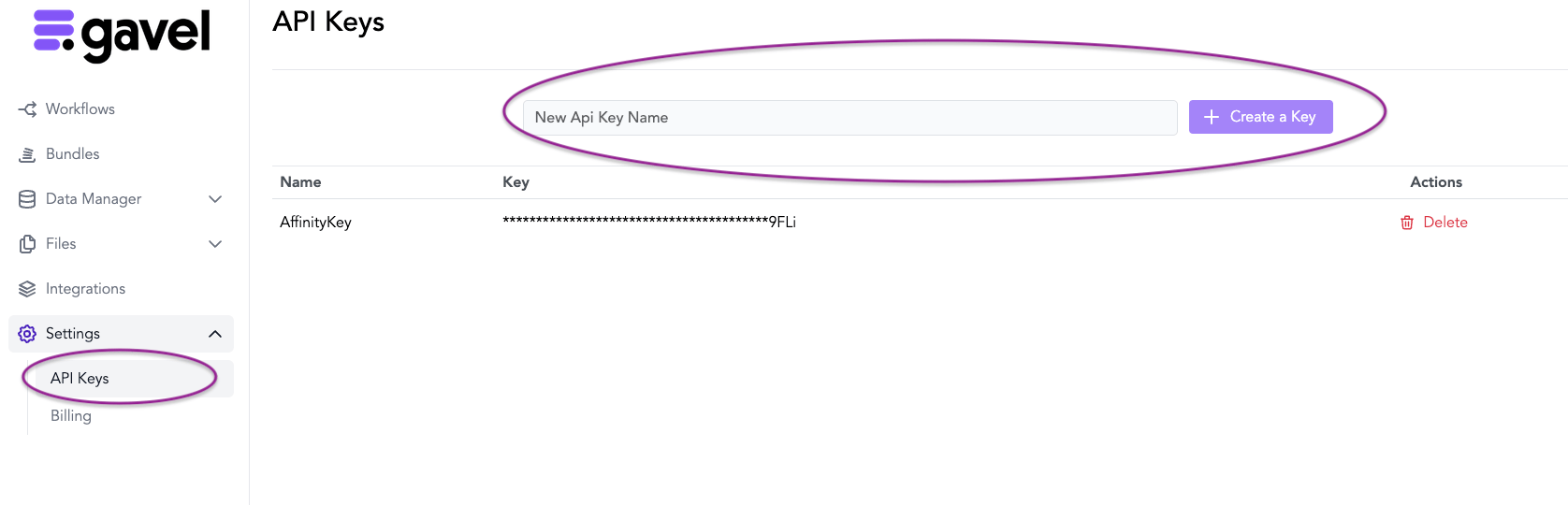
3
Log in to the add-in
In the Document Tagger panel, enter your Client Name (your Gavel subdomain) and paste the API key you just copied. Click Login.
4
Select your workflow
Once logged in, choose the workflow you are building or editing from the dropdown. The add-in loads all the variables already defined in that workflow, so you can insert them by clicking rather than typing.
What you can tag with the add-in
The Document Tagger add-in covers the full range of tagging tasks without requiring you to write syntax manually.Simple variables
Simple variables
Insert any workflow variable and optionally apply formatting — uppercase, first-letter capitalised, or various date formats. The
{{ today() }} function is also available for inserting the current date.Currency and number formatting
Currency and number formatting
Format number variables as currency, percentages, or custom numeric formats directly from the add-in panel. For formats not listed, you can use advanced syntax from the Code Curious section of the Learning Center.
Multi-select checked values
Multi-select checked values
For multi-select question types, the add-in inserts only the selected values as a list. You can choose comma-separated, Oxford comma, semicolon, or a custom separator.
Conditional phrases and paragraphs
Conditional phrases and paragraphs
Highlight any text in your document and set the conditions under which it should appear. Show Phrase when hides just the highlighted text. Show Paragraph when removes the entire paragraph and its line, and renumbers any surrounding numbered lists automatically.
Numerical and date calculations
Numerical and date calculations
Build calculations using addition, subtraction, multiplication, and division across number variables. For date calculations, you can find the time between two dates or add/subtract days, weeks, or years from a date variable or from today’s date.
Repeating items
Repeating items
Tag repeating item data in four formats: comma lists (single line), multi-line paragraphs, auto-generated Word tables, or generate-multiple (one document per repeating item instance). You can also create conditions based on the number of repeating item instances or the value of a specific attribute.
Variable tag syntax
Every variable in your Word template is wrapped in double curly brackets with a space on each side:Variable names in Gavel are case-sensitive.
{{ clientname }} and {{ ClientName }} are treated as two different variables. Always verify that the variable name in your template matches the variable name in your workflow questionnaire.Auto-adjusting custom numbering
If your document uses section numbers written as plain text (not as Word list fields), they will not renumber automatically when a paragraph is removed by conditional logic. Gavel’s Number Iterator functions solve this by inserting counters that renumber at runtime.
For example, if you have three sections and the second is removed by conditional logic, the third section automatically becomes Section Two:
Be sure your Word document uses List Styles for any outlines or numbered articles that you plan to make conditional. This allows the output document to update numbering formats automatically when conditions are met or not met.
Templates within templates
For advanced use cases, you can embed the full content of one.docx file inside another using the include syntax:
.docx files. The subdocument name must use underscores instead of spaces and include the .docx extension, written exactly as the file is named.
This is useful for shared headers that change frequently, or standard clauses (such as non-compete language) that appear in multiple documents. You update the subdocument once and every main document that references it reflects the change automatically.
Templates-within-templates should only be used when standard conditional logic cannot achieve the same result. In most cases, regular Show Phrase / Show Paragraph conditions are sufficient.
Troubleshooting
Unexpected spacing in generated documents
Unexpected spacing in generated documents
Conditional logic affects line spacing depending on which type of condition you use:
- Show Phrase when — removes only the text inside the condition. The line itself and its surrounding spacing remain, which can leave an empty line if an entire paragraph is hidden this way.
- Show Paragraph when — removes the entire paragraph, the line it occupied, and any surrounding blank lines. Numbered lists renumber automatically.